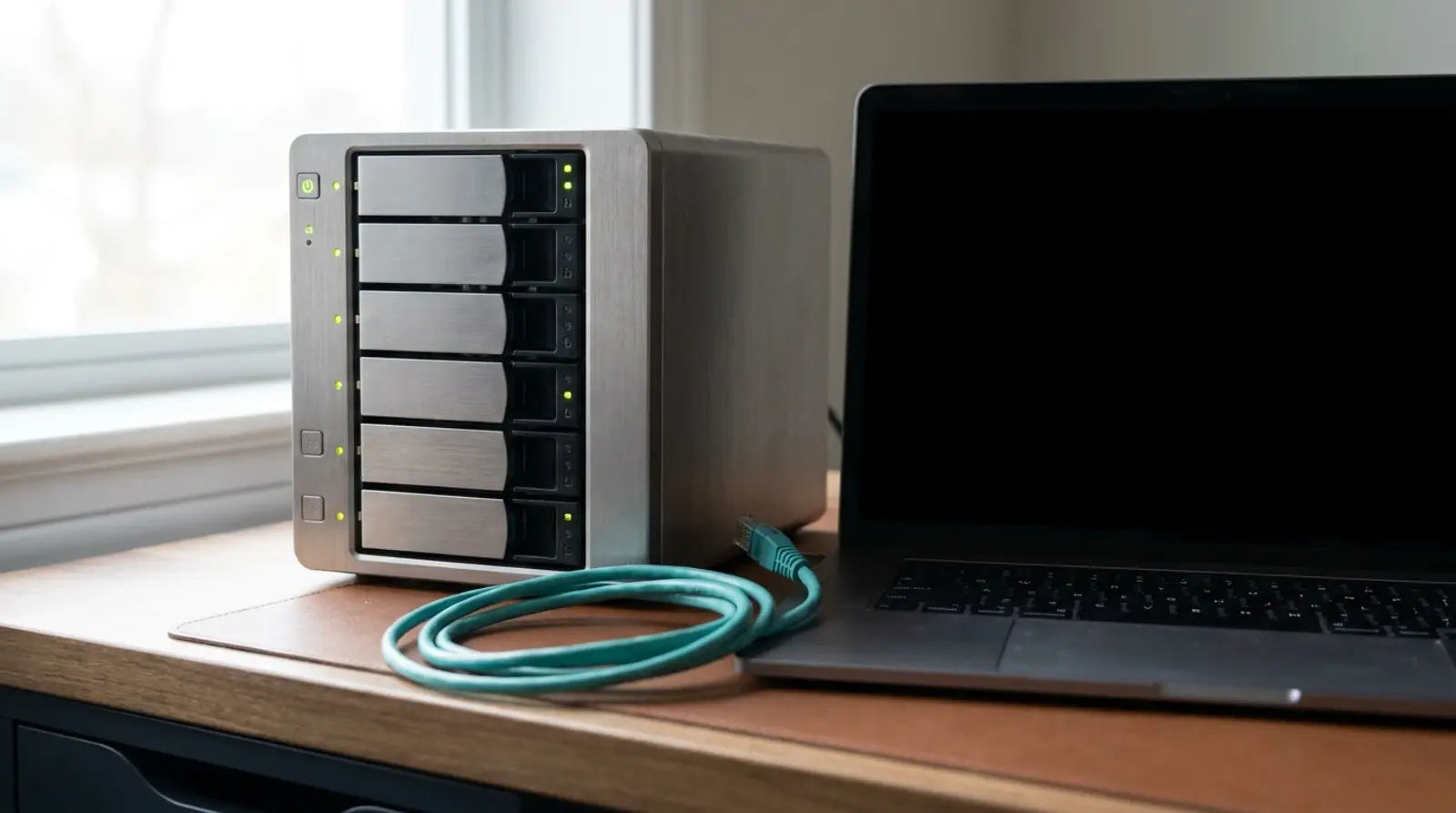
"Error establishing a database connection" is WordPress telling you that it could not reach its database. That single sentence covers four genuinely different failures, and the fix for one will do nothing at all for the others.
So the first task is not to fix anything — it is to identify which of the four you are looking at. That takes about a minute. This guide walks through the four in order of how common they are, with the signal that identifies each and what to do once you know.
Which of the Four Is It?
Start here. The answer decides everything that follows, and the wrong guess sends you editing configuration files when the real problem is a database server that is not running.
| Cause | How you recognise it | Urgency |
|---|---|---|
| Wrong credentials in the config file | Started right after a migration, restore or password change | Fix now — nothing works until you do |
| Database server not running | Every site on the server is down, not just this one | Fix now — may need the host |
| Corrupted database tables | Some pages work, others fail; it began after a crash or a disk-full event | Fix soon — repair before it spreads |
| Connection limit reached | Comes and goes, worse at peak traffic, recovers on its own | Plan a fix — this is a growth signal |
Case 1: Wrong Credentials
This is the most common cause by a wide margin, and almost always follows something you did: moving the site to a new host, restoring a backup, or changing the database password in the control panel without updating the site.
WordPress keeps four values in wp-config.php — DB_NAME, DB_USER, DB_PASSWORD and DB_HOST. All four have to match what the database server expects. Check them against the control panel, character by character; a trailing space inside the quotes is invisible and breaks it exactly like a wrong password.
DB_HOST is the one people get wrong most often. It is usually "localhost", but plenty of hosts require a specific hostname or IP, and a value that was correct on the old server is frequently wrong on the new one. If everything else looks right, this is the field to question.
Note that the database user also needs permission on that specific database. A user that exists with the right password but has not been granted access to the database produces exactly the same error message.
Case 2: The Database Server Is Not Running
If MySQL or MariaDB is not running, no credentials on earth will connect. The giveaway is scope: every site using that database server fails at once, not just yours.
On shared hosting there is nothing you can do here beyond raising a ticket — you have no access to the service. Check the host's status page first; if it is a general outage they usually already know.
On a VPS you can check directly with "systemctl status mysql" or "systemctl status mariadb" and restart it if it has stopped. The more useful question is why it stopped, and the answer is usually in the MySQL error log: out of memory, disk full, or a crash during a write. Restarting without reading that log means you will be doing it again tomorrow.
Out of memory is especially common on small VPS instances running both the web server and the database. MySQL is often the largest process on the machine, which makes it the first thing the kernel kills when memory runs out.
Case 3: Corrupted Tables
Corruption typically follows an unclean shutdown — a power loss, a hard reset, or a disk filling up mid-write. The signature is partial failure: some pages load perfectly while others produce the error, because only certain tables are damaged.
WordPress has a built-in repair tool. Add "define('WP_ALLOW_REPAIR', true);" to wp-config.php, then visit /wp-admin/maint/repair.php and run the repair. Remove that line immediately afterwards — while it is present, the repair page is accessible without logging in.
If that does not work, phpMyAdmin can repair tables directly: select the affected tables and choose Repair Table. For deeper damage, restoring from a backup is faster and safer than trying to salvage individual tables.
Corruption is also a warning. If it keeps recurring, the underlying cause is usually failing storage, a disk that keeps filling, or a server losing power unexpectedly. Repairing the symptom repeatedly without addressing that is a losing game.
Case 4: Connection Limit Reached — A Growth Signal
This is the interesting one, because it usually means the site is doing well rather than that something is broken. The error appears at busy times and disappears when traffic falls, and nothing in the configuration has changed.
Every database server has a maximum number of simultaneous connections, and hosting plans set that limit low on shared servers. When the site gets busy enough to exhaust it, new visitors cannot connect and see the error while everyone already connected carries on fine.
The short-term fixes are real but limited: add page caching so most visitors never reach the database at all, remove plugins that open their own connections, and fix any query slow enough to hold a connection open for seconds at a time. Caching in particular can buy a lot of headroom cheaply.
The longer-term answer is that the site has outgrown its plan. On shared hosting the connection limit is not yours to raise, and you are also competing with every other account on the machine. Moving to a VPS gives you a database you control, with limits you set based on the memory you actually have — and the ability to see the connection count in real time instead of inferring it from customer complaints.
Hitting the connection limit on shared hosting?
Cloud VPS with a database you control and limits set by your own RAM, not by the plan — from ฿150/month.
Frequently Asked Questions
The front end is broken but wp-admin also shows the error. Does that mean anything?
If both fail, the database is genuinely unreachable — credentials or a dead server. If the front end fails while wp-admin partly works, it points toward table corruption, because admin pages read a different set of tables.
I restored a backup and now I get this error. Why?
Because the restored wp-config.php holds the old server's database credentials. Backups capture the config file exactly as it was, and the database name, user and host are frequently different on the new server. Update all four values to match the new environment.
It fixes itself after a few minutes. Should I still worry?
Yes. Self-healing almost always means the connection limit is being hit at peak and clearing as traffic falls. Every occurrence is real visitors seeing a broken site. It will get worse as the site grows, so treat it as a deadline rather than a curiosity.
Is "localhost" always the right value for DB_HOST?
No. It is the most common value, but some hosts use a dedicated database server with its own hostname, and some require an IP or a non-standard port. Take the value from your host's control panel rather than assuming — this is the field that most often survives a migration incorrectly.
How do I know whether the problem is my site or the whole server?
If you have another site on the same account, load that. If it works, the problem is specific to this site — credentials or tables. If it fails too, the database server itself is down and it is the host's problem.
GUIDES
Related articles
Keep reading on similar topics
500 Internal Server Error — Causes and How to Fix It
A 500 is the least informative error on the web: it means "something went wrong and I am not telling you what". The good news is that the server almost always wrote the real reason to a log file. This guide shows you where that log lives and how to work through the causes in the order that finds the culprit fastest.
Read more
503 Service Unavailable — Deliberate or Overloaded?
A 503 is the only 5xx that is often completely intentional. The server is up and healthy and has decided not to serve you right now. Telling a planned maintenance page from a server buckling under load is the first thing to establish, and this guide shows you how.
Read more
502 Bad Gateway — What It Means and How to Fix It
A 502 means one server asked another server for the page and got back something it could not use. This guide explains which two machines are involved, how 502 differs from 500 and 504, and the order to work through the causes so you find the real one first.
Read more