How to Make a Minecraft Server to Play with Friends (Full Guide)
Running your own Minecraft server to play with friends is a dream for almost every player, because a private server means a world you fully control — build a city, run a survival server, install mods, or invite friends to build together, all on your terms. But many people get stuck when they actually start: where do I begin, what do I need to install, and why can't my friends join?
This article walks you through setting up a Minecraft server from the ground up. There are 2 main options — "self-hosting on your PC" and "renting a server" — and we compare the pros and cons in a clear table, then teach you how to set up a rented server step by step. We also cover the basics of Java vs Bedrock, RAM requirements by player count, and how to install mods/plugins so your server runs smoothly and lag-free.
How Many Ways Can You Run a Minecraft Server?
Before you start, understand that there are 2 main approaches to running a Minecraft server for friends, each suited to different situations. Choosing the right one from the start saves time and spares you headaches later.
The first is "self-hosting on your PC," using your home computer as the server. This has no monthly cost, but you have to configure your network yourself, leave the PC on the whole time you want friends to be able to join, and you often run into port forwarding problems. The second is "renting a server," using a Minecraft hosting service that runs 24/7 in a data center — you pay a monthly fee in exchange for convenience and stability.
Self-Hosting vs. Renting a Server: Pros and Cons
To make the decision easier, look at the comparison table below, which summarizes the differences in the areas players care about most — cost, hassle, stability, and the experience for the friends who join.
| Topic | Self-hosting on your PC | Renting a server (Minecraft Hosting) |
|---|---|---|
| Cost | Free, but with electricity/internet costs | Monthly, from ฿150/month |
| Initial setup | Fiddly — must open ports, configure network yourself | Instant, no port setup needed |
| Must leave the PC on? | Yes, the whole time friends want to join | No, the server runs 24/7 |
| Stability | Depends on home PC/internet; power or net drops crash it | Data center, 99.9% uptime |
| Friends' ping | Depends on home internet; often high/unstable | Data center in Thailand, low ping |
| Install mods/modpacks | Possible, but configure it yourself | Install mods/modpacks via control panel |
| Java/Bedrock support | Must choose and install yourself | Supports both Java and Bedrock |
| Best for | Casual play, small groups, testing | Serious play, many friends, wanting stability |
Java vs Bedrock: What's the Difference (Know Before You Start)
Before you run a server, know that Minecraft has 2 main versions — Java Edition and Bedrock Edition — and the server version must match the version your friends play, or they won't be able to join.
Java Edition is the original version on PC, popular among modders because there are a huge number of mods and plugins to choose from. Bedrock Edition is the cross-platform version that plays across devices — mobile (iOS/Android), consoles (Xbox, PS, Switch), and Windows — making it easy for friends on different devices to play together.
- Java Edition → mainly played on PC, its strength is the largest selection of mods/plugins, ideal for groups wanting heavy mods
- Bedrock Edition → cross-platform (mobile/console/Windows), ideal for friend groups using a variety of devices
- Friends must play the same version as the server, so check first whether most of your friends play Java or Bedrock
Setting Up a Minecraft Server via a Hosting Service (Step-by-Step)
The advantage of renting a server is that the process is far easier than self-hosting — no dealing with port forwarding or network configuration at all. Below are the basic steps to set up a Minecraft server through a Minecraft hosting service.
- Choose a Minecraft hosting plan based on your player count and required RAM (from ฿150/month)
- Choose the version to run — Java or Bedrock — to match what your friends play
- Choose the number of player slots based on your group size
- Pay and wait for the system to activate — at Plusweb it is instant, no long wait
- Enter the control panel to configure the server, such as game mode (Survival/Creative), world name, and enabling/disabling mods
- Copy the server IP/address you receive and send it to friends to enter under the Multiplayer menu, and you can all play together right away
How Many Players, and How Much RAM Do You Need?
RAM is the single most important factor in whether a Minecraft server runs smoothly or lags. The more players and the heavier the mods, the more RAM you need. The table below is a rough starting guide for a typical server.
| Player count | Play style | Recommended RAM |
|---|---|---|
| 2-4 players | Vanilla, no mods | 2 GB |
| 5-10 players | Vanilla or light plugins | 3-4 GB |
| 10-20 players | Moderate plugins or mods | 6-8 GB |
| 20+ players | Heavy mods/modpacks, large maps | 8-12 GB and up |
How to Install Mods / Plugins Without Lag
The charm of Java Minecraft is the mods and plugins that add almost unlimited features — from new monsters and items to in-server economies. But installing mods also brings performance risks if you're not careful.
On a rented server that supports mods, you can install mods or modpacks through the control panel without editing files in a complex way. Plusweb supports installing mods/modpacks and has an auto-update system, which makes management much easier.
- Install mods one at a time and test first — don't install dozens at once, or lag will be hard to trace
- Choose modpacks compatible with your server's Minecraft version (match Forge/Fabric to the version)
- The more mods, the more RAM they use — scale your RAM plan accordingly
- Use auto-update so mod and server versions don't fall out of sync and become incompatible
- Always back up your world before installing new mods, so you can roll back if something goes wrong
Run Your Server with Plusweb Minecraft Hosting
If you've read this far and feel self-hosting on your PC is too much hassle, renting a server with Plusweb is the shortcut that gets you playing with friends in minutes — no headaches over network configuration or leaving your PC on.
Plusweb Minecraft Hosting starts at just ฿150/month, supports both Java and Bedrock, allows mods/modpacks, includes auto-update, activates instantly, and lets you choose the number of player slots. Best of all, the data center is in Thailand, giving low ping for Thai and ASEAN players so the server runs smoothly.
- From ฿150/month, supports both Java and Bedrock
- Install mods/modpacks with auto-update
- Instant activation, no waiting, no port setup
- Choose the number of player slots for your group size
- Data center in Thailand, low ping, 99.9% uptime
Run a Minecraft server with friends in 5 minutes with Plusweb
Supports both Java and Bedrock · install mods/modpacks · instant activation · data center in Thailand with low ping · from ฿150/month
Frequently Asked Questions
Does running a Minecraft server for friends cost money?
Not necessarily. Self-hosting on your home PC has no monthly fee, but you must leave the PC on and configure your network yourself. Renting a server has a monthly fee starting around ฿150/month, in exchange for convenience, 24/7 uptime, and friends being able to join anytime without your PC being on.
Which is better, self-hosting or renting a server?
It depends on your usage. For a short casual session with 1-2 friends, self-hosting is fine. But if you want friends to join anytime, don't want to leave your PC on, and need stability and low ping, renting a server is more worth it because it activates instantly and runs in a data center 24/7.
How much RAM do I need for a Minecraft server?
It depends on player count and mods. A vanilla server for 2-4 players uses around 2 GB, 5-10 players use 3-4 GB, 10-20 players with moderate mods use 6-8 GB, and 20+ players with heavy modpacks should use 8-12 GB or more. It's wise to allow slightly more RAM than your actual player count, especially with mods.
Can I install mods after setting up a server?
Yes, especially on the Java version with its huge selection of mods and plugins. On a rented server that supports mods like Plusweb, you can install mods/modpacks through the control panel with auto-update. It's wise to install mods one at a time and always back up your world first to prevent problems.
Why can't my friends join the server?
The most common cause is a version mismatch (a friend plays Bedrock while the server is Java, or vice versa). For self-hosting on a PC, it's often because port forwarding isn't set up correctly. Renting a server eliminates the port issue — just make sure everyone plays the same version as the server and enters the correct IP.
GUIDES
Related articles
Keep reading on similar topics
Best Minecraft Server Hosting: The Complete Selection Guide
Want to rent a Minecraft server but don't know which to choose? This article covers the key criteria for choosing Minecraft server hosting — RAM specs, location and ping, Java+Bedrock support, mods, instant activation, price, and support — plus a RAM selection table.
Read more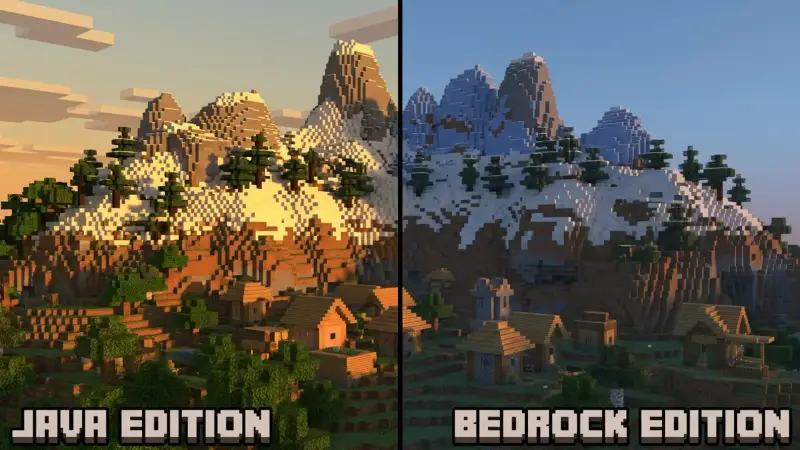
Minecraft Java vs Bedrock: Which Version Should You Run a Server On?
A complete rundown of the differences between Minecraft Java and Bedrock — where they differ, a clear comparison table covering platforms, mods/add-ons, crossplay, and performance, plus advice on which version to run a server on based on your friend group.
Read more
What Is Game Server Hosting, and Why Rent Instead of Self-Host?
Want to run a game server with friends but don't know what game server hosting is? This article explains it all — comparing self-hosting on your PC vs. a VPS vs. dedicated game hosting — plus popular games we support and what to check before renting.
Read more