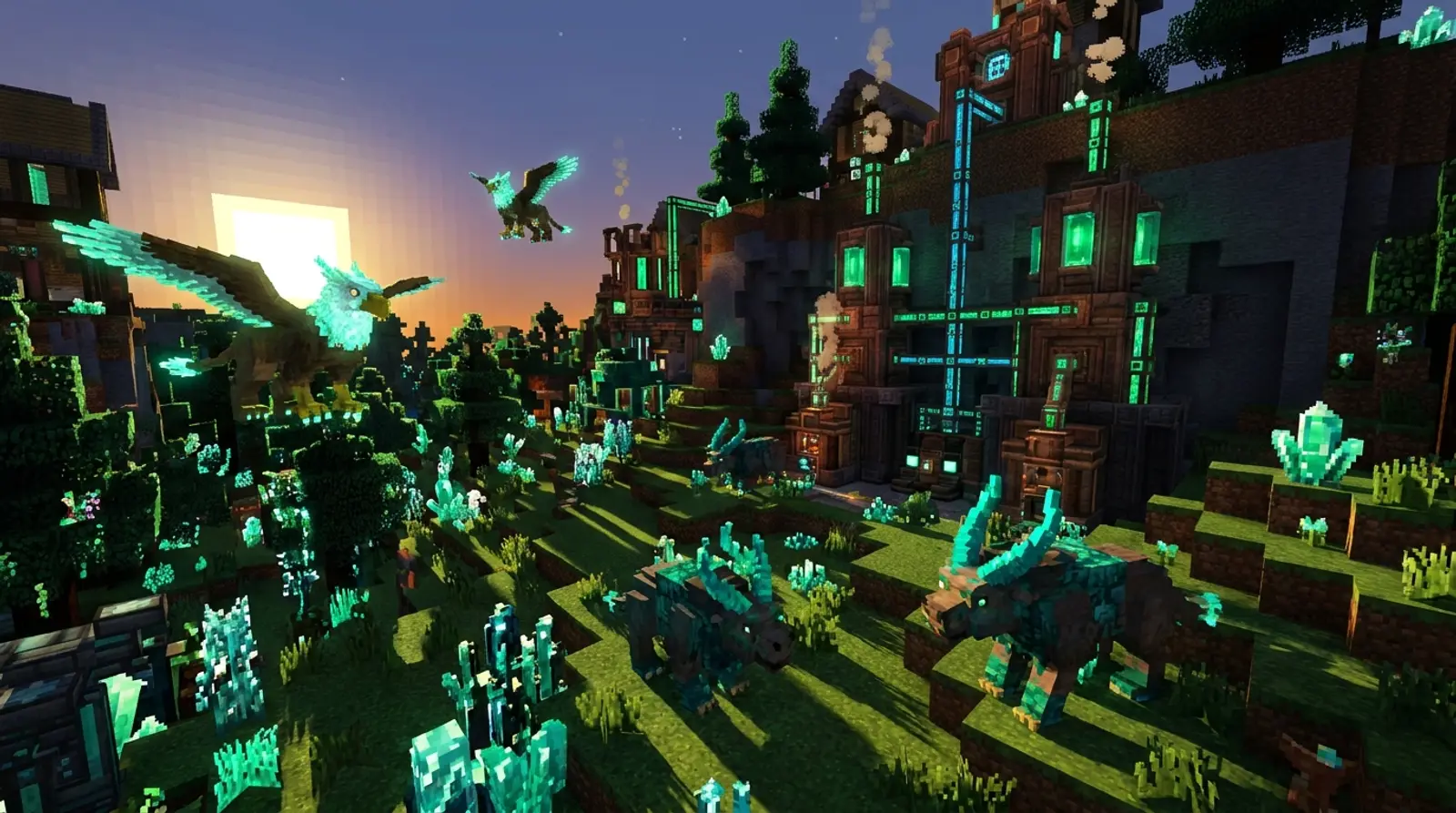
Minecraft is fun on its own, but after playing for a while many people want something new. That is where "mods" come in — adding items, animals, and systems, or making play more convenient, turning ordinary Minecraft into a game with far more to do.
This article rounds up the best Minecraft mods to play in 2026, organized into easy-to-browse categories: mods that make play more convenient (quality of life), animal and monster mods, tech-focused mods, and map/adventure mods. It also teaches you how to install them with Forge and Fabric, including installing mods on a server.
We focus on mods that are genuinely playable, suitable for all ages, and safe — along with advice on downloading from trusted sources, so you can enjoy mods without worrying about dangerous files.
What Is a Minecraft Mod, and What Do You Get?
A mod (short for Modification) is an add-on created by players or independent dev teams to add or change content in the game — new items, animals, blocks, and systems, all the way to reworking certain mechanics. It makes Minecraft far more varied.
Unlike a plugin, which runs on the server side and requires nothing extra from players, most mods must be installed both on the player side and (if you play on a server) on the server side, matching versions, before you can play together. Understanding this matters when you want to play modded with friends.
Most mods rely on a "mod loader" like Forge or Fabric as a base first, then you drop the mod files in. Choosing a loader that matches what the mod supports is the first thing to check.
Quality of Life Mods (More Convenient Play)
This category is mods that do not overhaul the game but make in-game life much more convenient — a good first set to keep installed.
- JEI (Just Enough Items) — view crafting recipes and required materials instantly in-game, no need to look them up elsewhere
- JourneyMap / Xaero's Minimap — add a minimap and waypoint system to avoid getting lost and find your way home more easily
- AppleSkin — show detailed food and saturation info to help plan your eating
- Inventory Sorting / Mouse Tweaks — organize your inventory faster and cut down on bag management
- Jade / The One Probe — instantly see info about the block or monster you are looking at
Animal and Monster Mods
Want the Minecraft world to feel more alive, full of new animals and enemies to explore and fight? This category delivers, and it is often the most fun when playing as a group.
- Alex's Mobs — adds a wide variety of animals and monsters with unique behaviors and drops
- Naturalist — adds natural animals that make biomes feel more alive and realistic
- The Twilight Forest — opens a mysterious forest dimension full of bosses and dungeons to explore
- Mowzie's Mobs — adds standout bosses and monsters with challenging combat
- Aquaculture — adds fish and a deeper, more fun fishing system
Technology and Map/Adventure Mods
For people who love building machines, automation systems, or exploring dungeons and new structures, these two categories give Minecraft more long-term goals to work toward.
| Category | Example mod | Highlights |
|---|---|---|
| Tech/Automation | Create | Build beautiful mechanical machines and automation systems |
| Tech/Power | Applied Energistics 2 (AE2) | Advanced item storage and management system |
| Exploration/Structures | YUNG's Better Structures | Rework villages, dungeons, and caves to be more explorable |
| Adventure/Biomes | Biomes O' Plenty | Adds diverse biomes to make the world worth exploring |
| Adventure/Dungeons | When Dungeons Arise | Adds dungeons and large structures to conquer |
How to Install Mods With Forge or Fabric
Before installing mods, pick a loader that matches what the mod supports. Generally each mod states whether it supports Forge, Fabric, or both, and which Minecraft version — always check first.
- 1Choose and install a mod loader — download Forge or Fabric matching the Minecraft version you will play, then install it (Fabric usually needs Fabric API too)
- 2Launch Minecraft with the Forge/Fabric profile once so the system creates the mods folder
- 3Download the mod file (.jar) from a trusted source, matching both the loader and the game version
- 4Place the .jar file in the mods folder (usually inside the .minecraft/mods folder)
- 5Make sure any dependencies the mods need are present, such as libraries a mod requires
- 6Launch the game again and the mods will load; if the game crashes, check that versions and dependencies match
Install Mods on a Server to Play the Same Mods With Friends
If you want to play modded with several friends, playing over LAN or sharing a host machine is usually unstable — the server only exists while the host's machine is on, and if the host loses internet, everyone drops. A better route is running mods on a real server.
The principle is: the server must install the mod loader (Forge/Fabric) and the same set of mod files that every player installs on their own machine, with matching versions across the board. Then everyone joins the same server and plays the same mods, without depending on anyone keeping a host machine running.
Renting Minecraft Hosting that supports mods and modpacks, runs 24/7, and sits in a Thai datacenter for low ping helps your group play modded together continuously — especially heavy modpacks that a home machine cannot handle.
Want to play with friends without interruptions
Install the same set of mods and play together anytime — Plusweb Minecraft Hosting installs mods/modpacks/plugins, runs 24/7, supports Java + Bedrock, sits in a Thai datacenter for low ping, 99.9% uptime, from ฿150/mo.
Frequently Asked Questions
Do Minecraft mods need Forge or Fabric?
Most do, because mods run on a mod loader like Forge or Fabric before you place the mod files. Check the mod's download page for which loader and Minecraft version it supports, then match them.
My game crashes after installing mods — how do I fix it?
The most common causes are mismatched versions, the wrong loader, or a missing dependency the mod needs. Make sure the mod file, loader, and game version all match, and that required libraries are present. If it still fails, remove mods one at a time to find the one causing the conflict.
Where do I install mods to play with friends on a server?
You must install them on both the server side and every player's side, and they must be the same set of mods at the same version to play together. This differs from plugins, which install only on the server side and require nothing from players.
Where can I download mods safely?
Only download from the developer's official page or a trusted mod platform. Avoid sketchy sites that force you to download an extra installer, since they risk malware-laced files.
Can I run a heavy modpack as a server on a home machine?
You can, but it is usually unstable, because the server is only online while the host machine is on, and heavy modpacks use a lot of resources. Running it on Minecraft Hosting with enough RAM and 24/7 uptime plays far more smoothly and continuously.
GUIDES
Related articles
Keep reading on similar topics
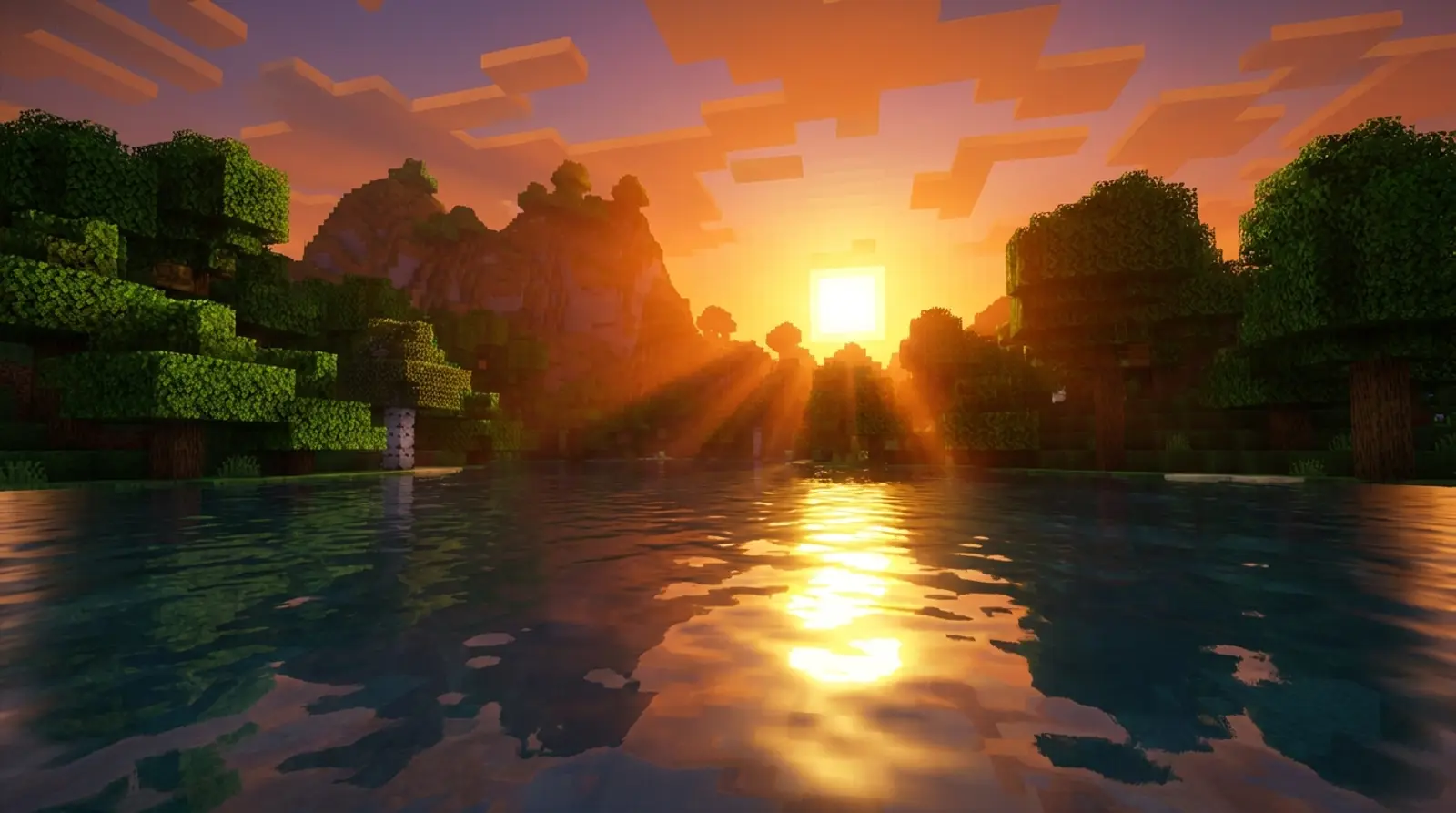
Best Minecraft Shaders 2026 With Installation Guide
Want Minecraft to look richer with realistic light and shadow? Here are the most popular shaders of 2026 — BSL, Complementary, SEUS, and Bliss — with what makes each one stand out, how to install shaders on both Java (Optifine/Iris) and Bedrock, and the specs you should have first.
Read more
How to Install Plugins + Set Up a Minecraft Server (2026 Edition)
Want your Minecraft server to have more features? This article teaches you to set up a server with Spigot/Paper, edit server.properties, install plugins step by step, plus recommended popular plugins EssentialsX WorldEdit LuckPerms Vault and spec-tuning tips.
Read more
How to Make a Minecraft Server to Play with Friends (Full Guide)
Want to run a Minecraft server with friends but don't know where to start? This article covers 2 options — self-hosting on your PC vs. renting a server — with pros and cons, step-by-step setup, a RAM-by-player-count table, and how to install mods.
Read more