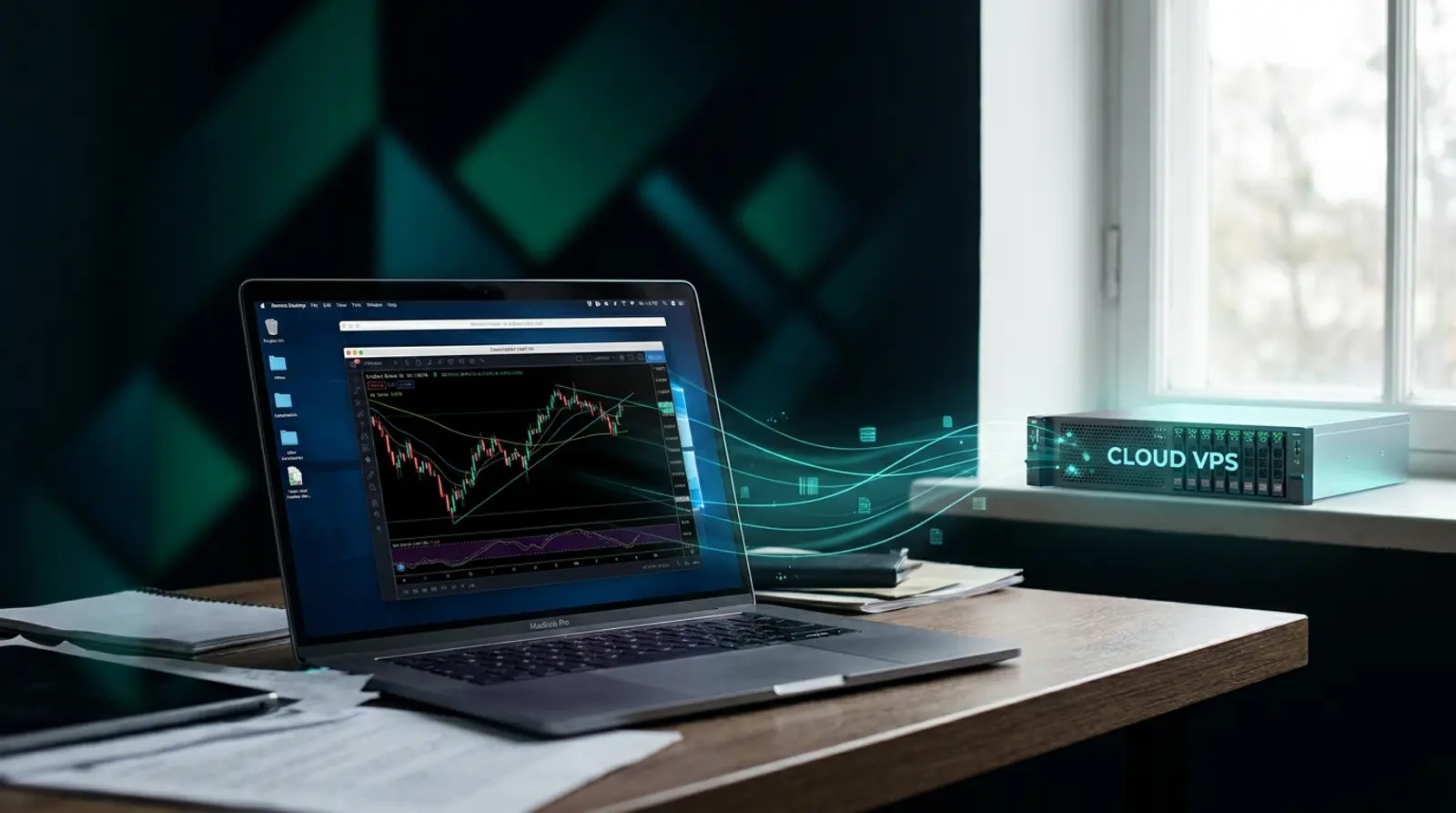
Want your EA (Expert Advisor) to trade for you 24/7 without leaving a computer running at home? The answer is running your EA on a Forex VPS. But for beginners, steps like remoting into the machine, installing MT4/MT5, or adding the EA file can look intimidating — when in reality they're easy to follow.
This article teaches you how to run an EA on a VPS in detail, step by step — from what to prepare before you get a VPS, to remoting in via Remote Desktop (RDP), installing and logging into MT4/MT5, adding the EA and enabling AutoTrading, and confirming it runs a full 24/7, plus fixes for the problems beginners hit most. Finish reading and you can follow along right away.
Before you start: what to prepare
Before running an EA on a VPS, check that you have these 4 things. Once you do, the rest takes under 15 minutes and goes smoothly.
- A Forex VPS you've already got, with remote details — IP address, username, and password (usually emailed after activation)
- The EA file you'll run — typically a .ex4 file (for MT4) or .ex5 (for MT5); some come with a .set file for settings
- A live or demo trading account from your broker, with login, password, and the broker's server name
- The MT4 or MT5 program from your broker (you can download it while on the VPS — no need to prepare it in advance)
Remote into the VPS via Remote Desktop (RDP)
Most Forex VPS machines run Windows Server, which we control via Remote Desktop (RDP) — already built into Windows. The VPS screen appears on your machine as if you'd opened a second computer.
- 1On Windows: press Start and type "Remote Desktop Connection" (or mstsc), then open the program
- 2In the Computer field, enter the VPS IP address you received and click Connect
- 3Enter the VPS username and password when prompted, then click OK
- 4If a certificate warning appears, click Yes to continue; the VPS Windows screen will then appear
- 5On Mac: install the "Windows App" (formerly Microsoft Remote Desktop) from the App Store and add the machine with the same IP/username/password · on Android/iOS you can also use the "Windows App"
Install MetaTrader 4 / MT5 on the VPS
Once you're on the VPS Windows screen, install your broker's MetaTrader. Download the installer directly from the broker's official website so their server appears automatically in the list.
- 1Open a browser on the VPS (e.g. Microsoft Edge) and go to your broker's official website
- 2Download the broker's MT4 or MT5 installer (.exe file)
- 3Double-click the downloaded file, click Next / accept the terms, and let it finish installing
- 4Open MT4/MT5 — if you'll run multiple accounts at once, install in separate folders (Portable) or make additional copies of the program one set at a time
Log in to your broker trading account
After opening MT4/MT5, log in with the trading account details from your broker. If login succeeds, a connection-speed figure (e.g. 24/56 kb) appears in the bottom-right corner, showing you're connected to the server.
- 1Go to the menu File > Login to Trade Account
- 2Enter your login (account number), password, and select the server exactly as your broker provided
- 3Click OK and wait to connect — if successful, the Terminal window (Trade tab) shows your account balance and the bottom-right no longer shows "No connection"
Add the EA file to the Experts folder
This step is the heart of running an EA — you place the EA file into a folder MT4/MT5 can see. The easiest way is the Open Data Folder menu in the program, then drop the file in the right place.
- 1Copy the EA file (.ex4/.ex5) from your computer and paste it onto the VPS via the RDP clipboard (Ctrl+C on your machine, Ctrl+V on the VPS), or upload it via a link
- 2In MT, go to the menu File > Open Data Folder
- 3Open the MQL4 > Experts folder (for MT4) or MQL5 > Experts (for MT5)
- 4Drop the EA file into this Experts folder · if there are accompanying indicator files, place them in the Indicators folder next to it
- 5Back in MT, right-click the Navigator window > Refresh and the EA name will appear under Expert Advisors
Enable AutoTrading and drag the EA onto the chart
Once the EA appears in the Navigator, drag it onto the currency pair chart you want, and flip on the AutoTrading switch so the EA can actually place trades.
- 1Open the currency pair and timeframe chart the EA is meant to use (check the EA's manual)
- 2Drag the EA name from the Navigator onto that chart
- 3In the settings window that pops up, on the Common tab tick "Allow Algo Trading" (or Allow live trading), adjust the parameters on the Inputs tab as needed, then click OK
- 4Click the AutoTrading (or Algo Trading) button in the top toolbar so it turns green
- 5If everything is correct, the EA name appears in the top-right of the chart with a smiley 🙂 — meaning the EA is running (a frowny face or a cross means it's not ready to trade yet)
Confirm the EA runs a full 24/7
The beauty of a VPS is that once it's set up, you can "just close the RDP window" — the VPS stays on in the data center and the EA keeps running 24/7 without a PC at home. But check these 3 points before you rest easy.
- The smiley 🙂 in the top-right of the chart and a green AutoTrading button — confirming the EA is ready to trade
- The bottom-right of MT must not show "No connection" — it stays connected to the broker server
- Close the RDP window with the X button (do not Sign out / Log off) so the session stays alive and the EA keeps running
| Status you see | Meaning | What to do |
|---|---|---|
| Smiley 🙂 + green AutoTrading | EA running normally, ready to trade | Leave it, close RDP |
| Frowny ☹ / cross | AutoTrading is off, or EA not ready | Click AutoTrading green |
| No connection (bottom-right) | Dropped from the broker server | Check internet / log in again |
| No EA name on the chart | EA not yet dragged onto the chart | Drag the EA from Navigator onto the chart |
Fixing common beginner problems
EA won't trade / connection drops / market closed
If everything is set up but the EA still won't place orders, it's usually not a broken EA — it's a small setting you overlooked. Work through these checks.
- EA won't trade — check that the AutoTrading button is green, "Allow Algo Trading" is ticked in the EA settings, and the top-right shows a smiley
- Frowny/cross showing — usually AutoTrading is off, or the EA is set to trade only at certain times; check the EA's manual
- No connection / frequent drops — check that you logged in to the right server and the VPS internet is normal; frequent drops may signal an unstable VPS, so consider a provider with higher uptime
- Market closed / no orders on weekends — the Forex market is closed Saturday–Sunday, so it's normal for the EA not to trade then; nothing to fix
- EA trading the wrong pair/timeframe — open the chart to match what the EA was designed for and drag the EA onto the correct chart
- Not enough specs, MT freezes — if the machine lags when running multiple accounts, RAM/CPU is insufficient; upgrade your VPS plan
Best practices for a stable, long-running EA
Once your EA is running, use these approaches to keep the system stable and secure for the long term.
- Always test on demo first, then start live with a small lot size
- Choose VPS specs with headroom — each MT window uses ~300–500 MB of RAM, so don't max out the machine
- Set MT4/MT5 to open automatically when the VPS restarts and keep AutoTrading on
- Check the VPS at least once a day — confirm MT is still connected and the EA still shows a smiley
- Choose a VPS with 99.9%+ uptime and low latency to your broker, to reduce slippage and mid-session drops
- Set a strong VPS password and never share it, because your trading account lives on this machine
Ready to run your EA 24/7 on a Plusweb Forex VPS
Forex VPS built for MT4/MT5 · Windows Server · run your EA 24/7 · low latency · 99.9% uptime · from ฿250/mo, auto-provisioned in minutes
Frequently Asked Questions
Do I need technical knowledge to run an EA on a VPS?
No. If you can remote into Windows via RDP and use the File > Open Data Folder menu, you can follow the steps in this article. It's all clicking and dragging files — no coding required.
Can I run multiple EAs or accounts on one VPS?
Yes. Just install MT4/MT5 as multiple copies (Portable or in separate folders), log each into a different account, then drag an EA onto a chart in each program. Just confirm your VPS RAM/CPU is enough for the number of accounts you run at once.
If I turn off my home computer, will the EA stop?
No, because the EA runs on the VPS in the data center, not on your home PC. Once set up, close the RDP window with the X button (don't Sign out) and the VPS stays on with the EA running 24/7.
Why won't my EA place orders even after AutoTrading is green?
Usually "Allow Algo Trading" isn't ticked in the EA settings, the chart is on the wrong pair/timeframe, or the EA's conditions haven't been met (some EAs trade only at certain times). Check that the top-right shows a smiley and read the EA's manual.
What VPS specs do I need to run a single EA?
For a beginner running just 1 MT4/MT5 account with a light EA, about 1 vCPU / 3 GB RAM is enough. To run multiple accounts, step up to 2 vCPU / 4 GB RAM or more.
GUIDES
Related articles
Keep reading on similar topics

What Is a Forex VPS? Why Every EA Trader Should Have One
Everything a trader needs to know about a Forex VPS — what it is, how it differs from a regular VPS, whether it can really run an EA on MT4/MT5 24/7, plus how to choose one that is worth it and avoid getting burned.
Read more
Best Forex VPS 2026: How to Choose Right and Not Miss Out
Where should you get a Forex VPS? The 2026 buyer's guide — 8 decision criteria, a checklist table, traps to avoid (free/oversold/no SLA), and the Forex VPS with the best value for money.
Read more
MT4 vs MT5: How They Differ and Which to Choose in 2026
The full difference between MT4 and MT5 in one article — where MetaTrader 4 and 5 differ, a clear comparison table, which to choose for each type of trader, and why both should run on a Forex VPS 24/7.
Read more