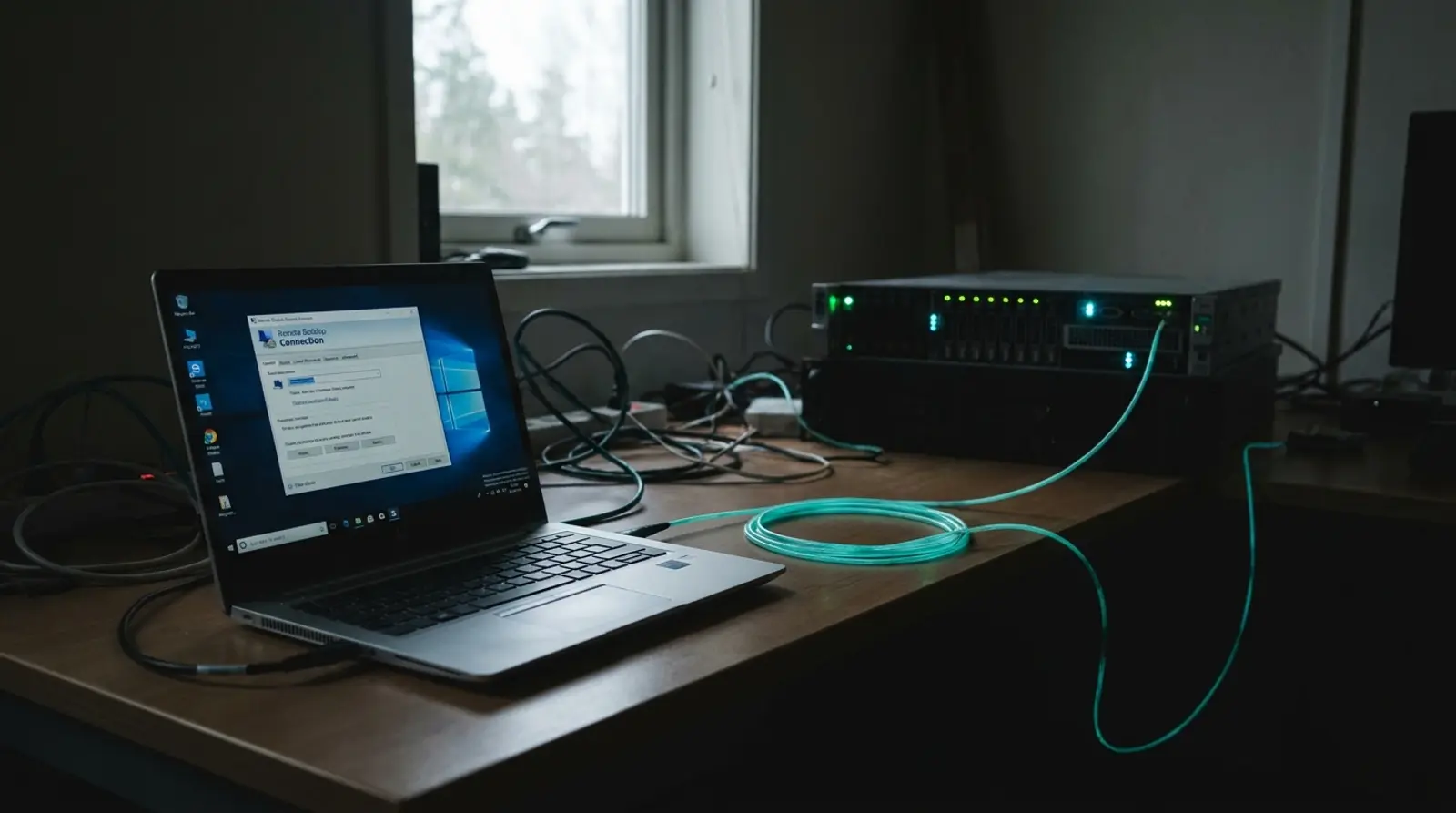
When you rent a Windows VPS or Windows Server, the first thing to do is "connect to the machine" to control it and install programs — and the standard way is with Remote Desktop, or RDP. A Remote Desktop Connection is the tool that lets you reach your server's desktop from anywhere, as if you were sitting right in front of it, but many beginners are not sure how to start.
This article explains Remote Desktop / RDP in plain English: what RDP is, how it works, plus a step-by-step guide to connecting to a Windows VPS with Remote Desktop on Windows, Mac, and mobile — including common problems with fixes, and how to secure your server.
What Is Remote Desktop / RDP?
Remote Desktop is technology that lets you control a computer or server remotely over the internet — seeing its desktop and using your mouse and keyboard as if you were sitting at the real machine. RDP stands for Remote Desktop Protocol, the "protocol," or communication standard, that Microsoft developed to make this Remote Desktop connection possible.
Put simply, Remote Desktop Connection is the program you use to open the connection, while RDP is the language or set of rules the two machines use to talk to each other. Once connected, the server's screen is streamed to your machine, and every click or keystroke is sent back to run on the server in real time.
How Does RDP Work?
RDP works on a client-server model. The server (your Windows VPS) runs the Remote Desktop service and waits for connections on the standard port, port 3389, while your machine uses a Remote Desktop client program to connect in.
When you connect, the system authenticates with the server's username and password. Once you pass, RDP streams the server's desktop to your machine and sends your keyboard and mouse input back to run on the server. The data in transit is encrypted for security. This happens continuously, giving you the experience of using that computer right in front of you.
How to Connect to a Windows VPS With Remote Desktop (on Windows)
If you already use a Windows PC, the Remote Desktop Connection program is built in — no extra download needed. Just follow these steps.
- 1Click Start and search for "Remote Desktop Connection" (or press Windows + R, type mstsc, and press Enter)
- 2In the Computer field, enter the IP address of the Windows VPS you received by email
- 3Click Show Options and enter the username (usually Administrator) in the User name field
- 4Click Connect; the system may warn about a certificate — click Yes to continue
- 5Enter the password you received and click OK
- 6Wait a moment, and the server's Windows desktop appears, ready to use right away
How to Connect on Mac and Mobile
You do not need Windows to connect to a Windows VPS, because Microsoft offers a free Remote Desktop app for Mac, iPhone/iPad, and Android.
- On Mac — download the "Windows App" (formerly Microsoft Remote Desktop) from the Mac App Store, open it, click Add PC, enter the server's IP and your username/password, then connect
- On iPhone / iPad — download the "Windows App" from the App Store, add a new PC, enter the IP and login details, then tap to connect
- On Android — download Microsoft's "Remote Desktop" app from Google Play, add a machine, enter the IP and login details, then tap to connect
Common RDP Connection Problems and How to Fix Them
Sometimes an RDP connection runs into trouble, but most issues are easy to fix. Here are the common problems and basic fixes.
| Symptom | Common cause | Basic fix |
|---|---|---|
| Cannot connect at all / timeout | Wrong IP, server not ready yet, or an internet issue | Check the IP is correct, wait for the VPS to finish deploying, and check your internet |
| Wrong username or password | A typo or using an old password | Copy the details from the email exactly, watching for spaces and letter case |
| Stuck on a black screen | The machine is loading, or the connection is unstable | Wait a moment; if it takes too long, close and reconnect |
| Frequent drops / choppy image | Slow or unstable internet | Lower the display quality in RDP settings, or use a more stable connection |
| Cannot connect after changing the port | The new port is not yet open in the firewall | Check the new port is open in the server's firewall and specify the port in the connection field |
Secure Your RDP Connection
Because RDP opens access to your server from the internet, it is a target for password-guessing (brute-force) attacks, so basic security settings are very important. Here is what you should do.
- Set a strong password — long, mixing upper and lower case, numbers, and symbols; avoid easily guessed passwords
- Change the RDP port — switch from the standard port 3389 to another port to reduce automatic scanning and guessing
- Configure the firewall — restrict RDP connections to trusted IPs only, if possible
- Update the system regularly — install Windows Server security updates on a regular basis
- Limit failed login attempts — set Account Lockout to block after several wrong password entries
- Change/disable the default Administrator account — create a new admin account and disable or rename the default one
Summary: RDP Makes a Windows VPS as Easy as Sitting at the Machine
Remote Desktop / RDP is the key that makes using a Windows VPS easy. You can connect to your server from a Windows PC, a Mac, or even a phone, control the desktop as if sitting at the real machine, and install and run programs such as MT4/MT5, EAs, or other apps 24 hours a day.
Once you know how to connect via RDP and set basic security, renting a Windows VPS is no longer difficult. Just choose a provider with automatic deployment and a support team, and you can start using your own Windows server within minutes.
Ready to Connect via RDP? Get Started With a Plusweb Windows VPS
Windows VPS · connect via Remote Desktop (RDP) · run MT4/MT5/EA · Administrator Access · SSD · from ฿150/mo · automatic deployment
Frequently Asked Questions
What is Remote Desktop Connection?
Remote Desktop Connection is a program used to connect to and control another computer or server remotely over the internet — seeing its desktop and using your mouse and keyboard as if sitting at the real machine. On Windows this program is built in and can be opened by typing mstsc.
Are RDP and Remote Desktop the same thing?
They are related but not exactly the same. RDP (Remote Desktop Protocol) is the protocol, or communication standard, that Microsoft developed, while Remote Desktop is the usage or feature that runs on the RDP protocol. Put simply, RDP is "the language the machines speak" and Remote Desktop is "the connection" that results.
Can I connect to a Windows VPS from a Mac?
Yes. Download the Windows App (formerly Microsoft Remote Desktop) for free from the Mac App Store, then add a new machine, enter the Windows VPS's IP, username, and password, and connect — you reach the Windows desktop just like on a Windows PC.
What should I do if I cannot connect via RDP?
Start by checking that you entered the IP, username, and password exactly as in the email, watching for letter case and spaces. Check that the VPS has finished deploying and that your internet is fine. If you changed the RDP port, open the new port in the firewall and specify it when connecting. If it still fails, contact the support team.
Is connecting to a VPS via RDP secure?
It is secure if set up well. The RDP connection data is already encrypted, but you should add security by setting a strong password, changing the RDP port from 3389 to another port, configuring the firewall to limit access, updating the system regularly, and limiting failed login attempts to reduce the risk of password-guessing.
GUIDES
Related articles
Keep reading on similar topics
What Is Windows Server? Uses and the 2026 Version
A complete guide to Windows Server — what it is, how versions 2019/2022/2025 differ, what it is used for, how it differs from regular Windows, licensing, and how to get started easily via a Windows VPS without buying hardware.
Read more
Windows VPS vs Linux VPS: What Is the Difference and Which to Choose in 2026
A complete rundown of every difference between a Windows VPS and a Linux VPS — license cost, GUI vs command line, which software runs (MT4/MT5/.NET vs web/apps), remote access via RDP vs SSH, and how to choose the right fit for your work.
Read more
What Is a Server? How It Works and the Main Types, Explained Simply
Everything a beginner needs to know about servers — what a server is, how it works, the main types, physical vs virtual servers, and which one to rent in 2026.
Read more